
- PressPDF
- Test-Pdf
- Upload
- Dpix
- Prices
- Contact
- About

- English
Add bleed and crop marks to PDF
Make your file print-ready in a minute: 3 mm bleed, trim size and crop marks – without InDesign or Acrobat. It works like desktop prepress software: you see the PDF all the time and check the result before you download.
- Mirrored or magnified bleed
- Removes white edges
- With or without crop marks
- All pages at once
Try it with your own file – no registration or subscription needed to try (files up to 100 MB). The subscription is only needed for downloading: one-time payment, no automatic renewal, uploads up to 1 GB. Files are deleted after 60 minutes.
Developed by Micropress, a print shop with 35+ years of experience.
Before and after
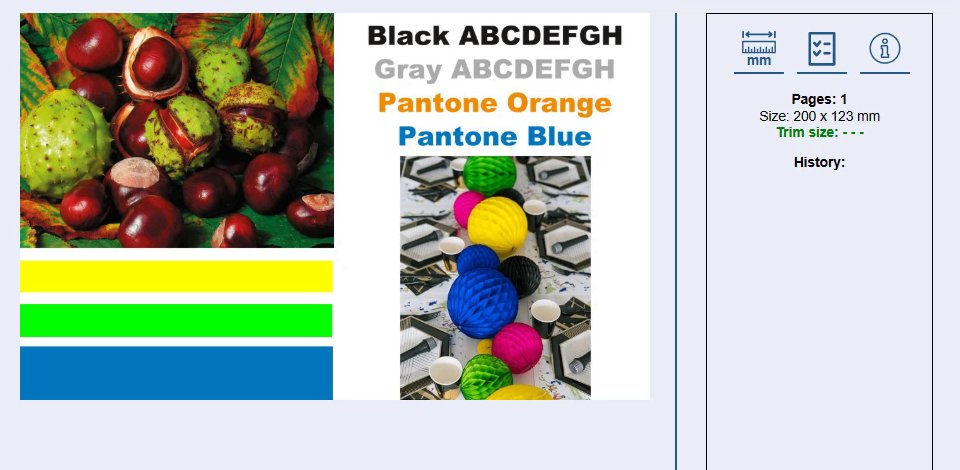
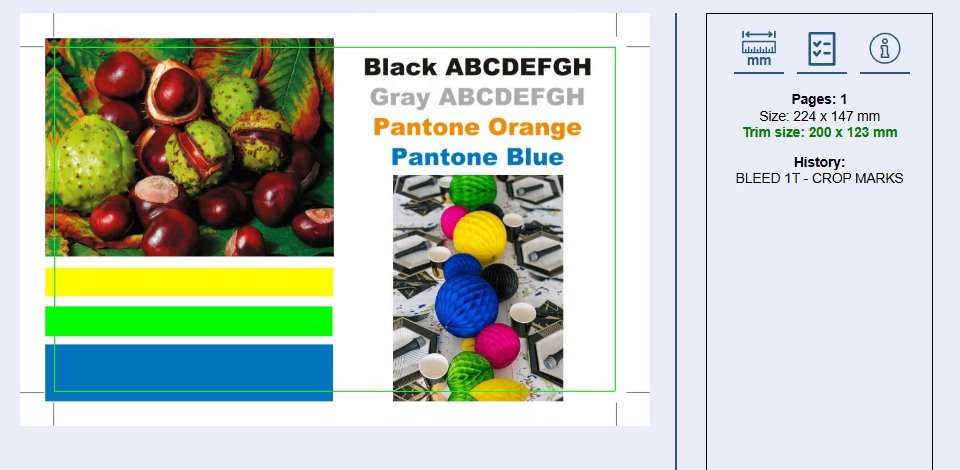
Prepress features that make the difference
Two bleed methods
Magnification when there is enough space between the edge and the important content. Mirroring when text, logos or barcodes are close to the edge – the content itself is not enlarged.
Removes disturbing edges
A thin white or coloured stripe at the edge would be mirrored into the bleed. Cut it off first – several times if needed. The PDF is scaled back to its original size in the background.
Trim size and crop marks
The PDF gets its trim size, so every print shop and RIP knows where to cut. Crop marks can be switched on or off.
PDF, JPG, TIFF, PNG
Images are converted to PDF on upload at the size you specify, then processed as a PDF.
All pages at once
In multi-page PDFs the selected bleed is added to every page in one step.
PDF structure untouched
Fonts, colour spaces, Pantone colours, images, vectors and layers stay exactly as they were – no data is lost or altered.
Bleed options
 3 mmRecommended. With magnification or mirroring.
 2 mmWhen there is little space at the edges.
 0 mmDesign with white edges: no bleed needed.
 5 / 8 / 10 mmWhite frame around a design without bleed.
How to add bleed to a PDF
- Upload your file – PDF, JPG, TIFF or PNG.
- Click Bleed and crop marks (icon 1) in the left toolbar.
- Remove disturbing edges with the scissors if a thin stripe is visible.
- Choose the bleed: 3 mm with magnification or mirroring, 2 mm or a white frame. Compare them in the live preview.
- Crop marks on or off, then save. The step appears in the history and can be undone.
Video: a 200 × 123 mm PDF gets 3 mm bleed and crop marks. What is bleed and why does it matter?
Printed products are cut from larger sheets, and no cut is perfectly exact. If the artwork ends exactly at the final size, a thin white line can appear on the edge. Bleed is the part of the artwork that extends beyond the trim size – usually 3 mm on every side – so the cut always falls inside the image.
The opposite is the safety zone: important content such as text, logos or barcodes should stay a few millimetres inside the trim, so it is never cut off.
Situation Recommended method Enough space between the edge and the important content 3 mm with magnification Text, logo or barcode close to the edge 3 mm with mirroring Thin white or coloured stripe at the edge Cut the stripe, then mirror Design with white edges 0 mm – crop marks only With crop marks the page becomes larger: a 200 × 123 mm PDF becomes a 224 × 147 mm page, while the trim size stays 200 × 123 mm.
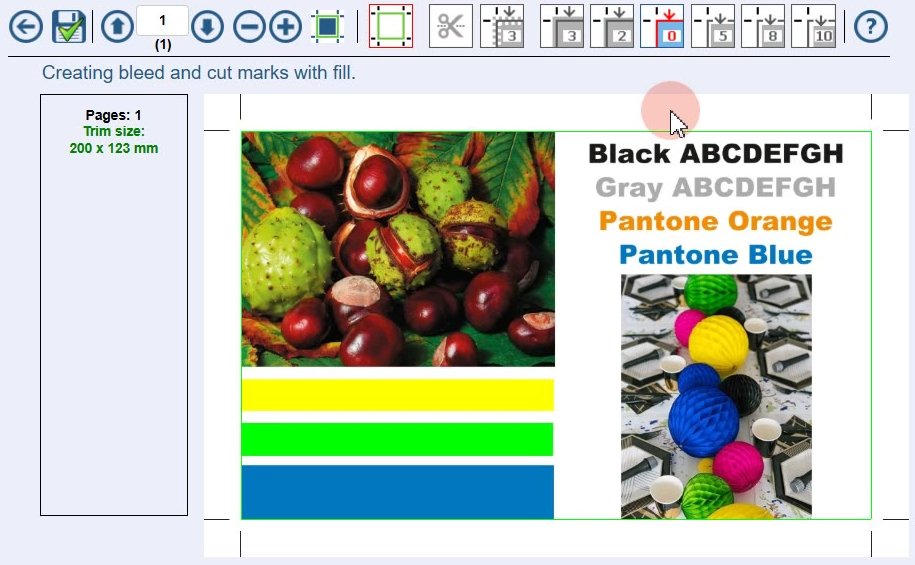
The bleed toolbar: crop marks, edge cutting and bleed options. Your PDF already has bleed, but no trim size or crop marks? Use the second bleed tool: Add crop marks and trim size.
Try every tool with your own file before you subscribe – you see the finished result, only the download needs a subscription. Bleed and crop marks are included in every subscription, together with all other PressPDF modules.
9 € / 1 month · 24 € / 3 months · 90 € / 1 year
One-time payment – the subscription does not renew automatically.
Frequently asked questions
What is bleed in a PDF?
Bleed is the part of the artwork that extends beyond the final cut size of the printed product, usually by 3 mm on every side. Printed sheets are cut after printing, and the bleed ensures that no thin white edge remains if the cut is slightly off.
How much bleed do I need?
3 mm bleed on every side is the standard for most print shops. If there is not enough space at the edges of the design, 2 mm bleed can also be used.
Mirrored or magnified bleed – which one should I choose?
Use magnification when there is enough space between the edge of the PDF and the important content, so that no text, logo or barcode gets into the safety zone. If there is not enough space, use mirroring: the edge of the artwork is mirrored outwards, and the content itself is not enlarged.
How can I add bleed to a PDF without InDesign or Acrobat?
Upload the PDF to PressPDF, open the bleed and crop marks tool, choose the bleed type and save. Everything runs in the browser; no InDesign, Acrobat Pro or other software is needed.
Can I add bleed without crop marks?
Yes. Crop marks can be switched on or off. The trim size is set in the PDF in both cases.
Why is my PDF larger after adding crop marks?
The crop marks are placed outside the bleed, so the page needs extra space for them. For example, a 200 × 123 mm PDF becomes a 224 × 147 mm page, while the trim size stays 200 × 123 mm.
My PDF has a thin white edge. Can it be removed?
Yes. Before adding mirrored bleed, the disturbing white or coloured edge can be cut off, several times if needed. The PDF is scaled back to its original size in the background, so the final size does not change.
Can I add bleed to a JPG, TIFF or PNG image?
Yes. JPG, TIFF and PNG images are converted to PDF on upload at the size you specify, and then processed as a PDF.
Does it work with multi-page PDFs?
Yes. The selected operation is carried out on every page of the PDF.
My PDF already has bleed but no trim size or crop marks. What should I use?
Use the second bleed tool, Add crop marks and trim size. It adds the trim size and crop marks to a PDF that already contains bleed.
Does adding bleed change my fonts, colours or images?
No. The internal structure of the PDF is left untouched: fonts, colour spaces, Pantone colours, images, vectors and layers stay exactly as they were.
What does it cost?
PressPDF is a subscription service: 9 € for 1 month, 24 € for 3 months or 90 € for 1 year. The subscription includes all modules. You can check the result in the preview before subscribing; the subscription is needed for downloading. One-time payment – the subscription does not renew automatically.
Related prepress tools
 Add crop marks & trim size
 Resize PDF by trim size
 Crop PDF
 Check trim size & bleed