
- PressPDF
- Test-Pdf
- Upload
- Dpix
- Prices
- Contact
- About

- English
Resize PDF by trim size or page size
Enter the final size you need – PressPDF scales the artwork and the bleed together. It works like desktop prepress software: you see the PDF all the time and check the new size before you download.
- Resize by trim size
- Proportional or free
- mm, inch or %
- PDF structure untouched
Try it with your own file – no registration or subscription needed to try (files up to 100 MB). The subscription is only needed for downloading: one-time payment, no automatic renewal, uploads up to 1 GB. Files are deleted after 60 minutes.
Developed by Micropress, a print shop with 35+ years of experience.
Before and after
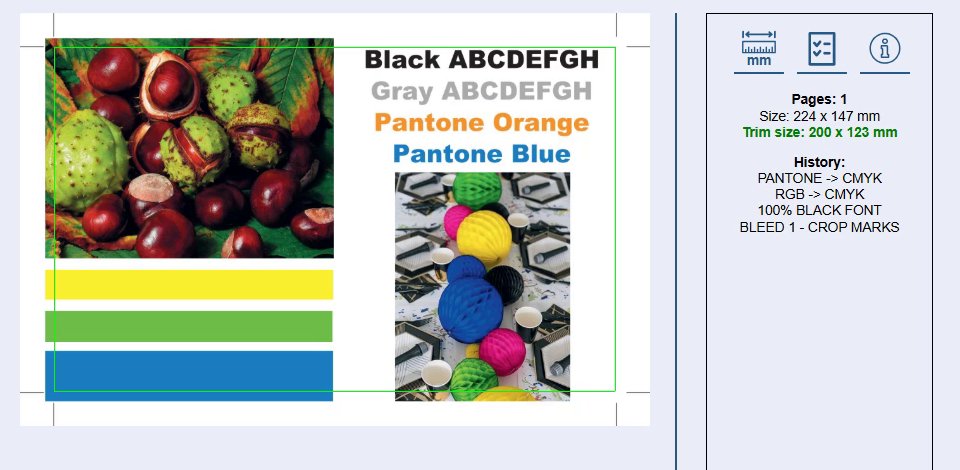
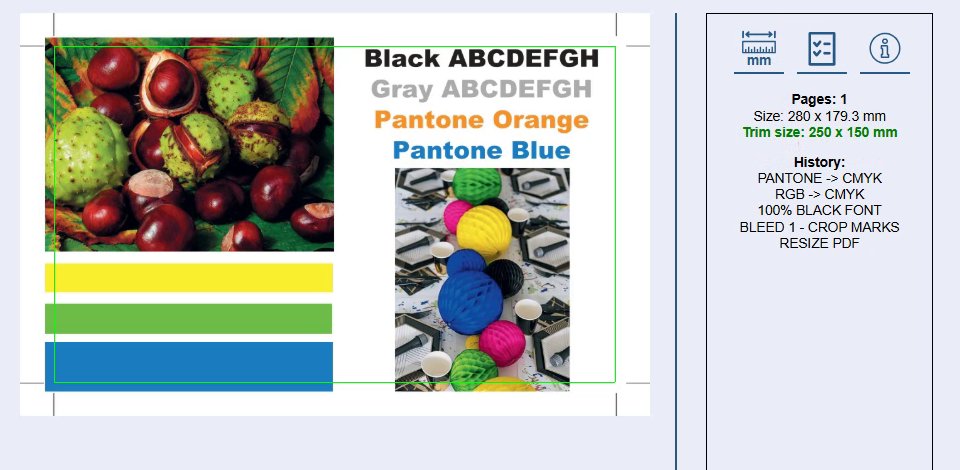
What makes this PDF resizer different

Resize by trim size
Enter the final, cut size of the product. The bleed is kept and scaled together with the artwork, so the file stays print-ready. This is what a print shop needs – and what most online resizers cannot do.

Resize by full page size
Alternatively, the whole page including the bleed becomes the size you enter. The option appears when the PDF has a trim size.

Proportional or free
Enter the width and the height is calculated proportionally. Overwrite the height to get exactly the size you need – in this case the content is stretched or compressed.
mm, inch or percent
Work in millimetres or inches, or scale by percentage – for example 141% from A4 to A3 or 71% from A4 to A5.
All pages the same size
Resizing applies to every page. If the pages have different sizes, all of them are converted to the same size.
PDF structure untouched
Only the dimensions change. Fonts, colour spaces, Pantone colours, images, vectors and layers stay exactly as they were – no data is lost or altered.
How to resize a PDF by trim size
- Upload your PDF. The info panel shows the page size and the trim size (green).
- Click Resize PDF in the left toolbar.
- Choose trim size or page size. Green means the size refers to the trim, red means the full page.
- Enter the new size in mm, inch or %. The height follows the width proportionally – overwrite it for a free size.
- Check and save. The new size is shown instantly; after saving, the step appears in the history and can be undone.
Video: 224 × 147 mm PDF with bleed (trim 200 × 123 mm) resized to a trim size of 250 × 150 mm. Trim size or page size – why it matters
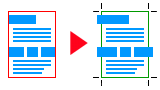
A print-ready PDF is usually bigger than the final product: around the trim size (the size after cutting) there is a bleed, typically 3 mm, so that no white edge remains after cutting.
If you simply scale the whole page to the final size, the bleed is squeezed into the product and the trim size will be wrong. Resizing by trim size avoids this: you enter the final size, and the bleed grows or shrinks with the artwork.
Page size Trim size Original 224 × 147 mm 200 × 123 mm After resizing by trim size 280 × 179.3 mm 250 × 150 mm Typical uses: a design made for a different format, A4 to A5 or Letter, a poster enlarged to a larger size, or a customer file that is a few millimetres off.
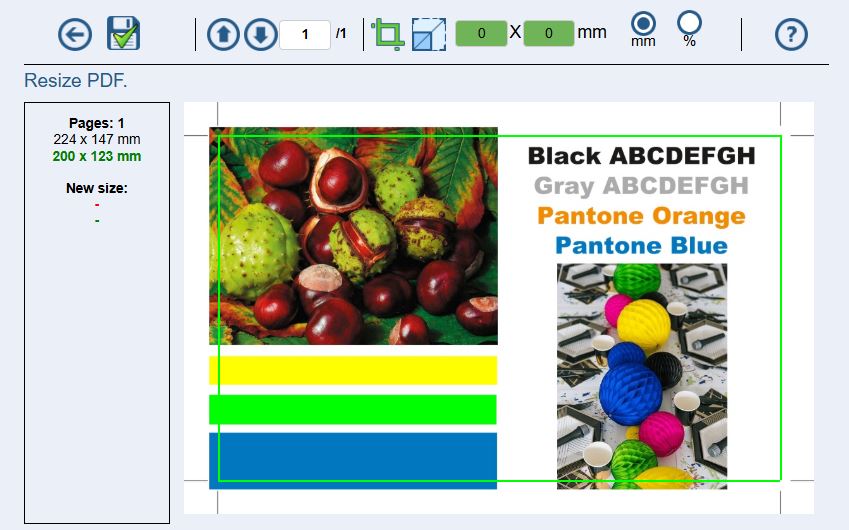
The Resize PDF toolbar: trim or page size, width × height, mm or %. See every change before you download
PressPDF is not a one-click converter. The PDF is visible all the time, the info panel shows the page size and trim size, and the history lists every step. You can combine resizing with adding bleed, crop marks or colour conversions, and download only when everything is right.
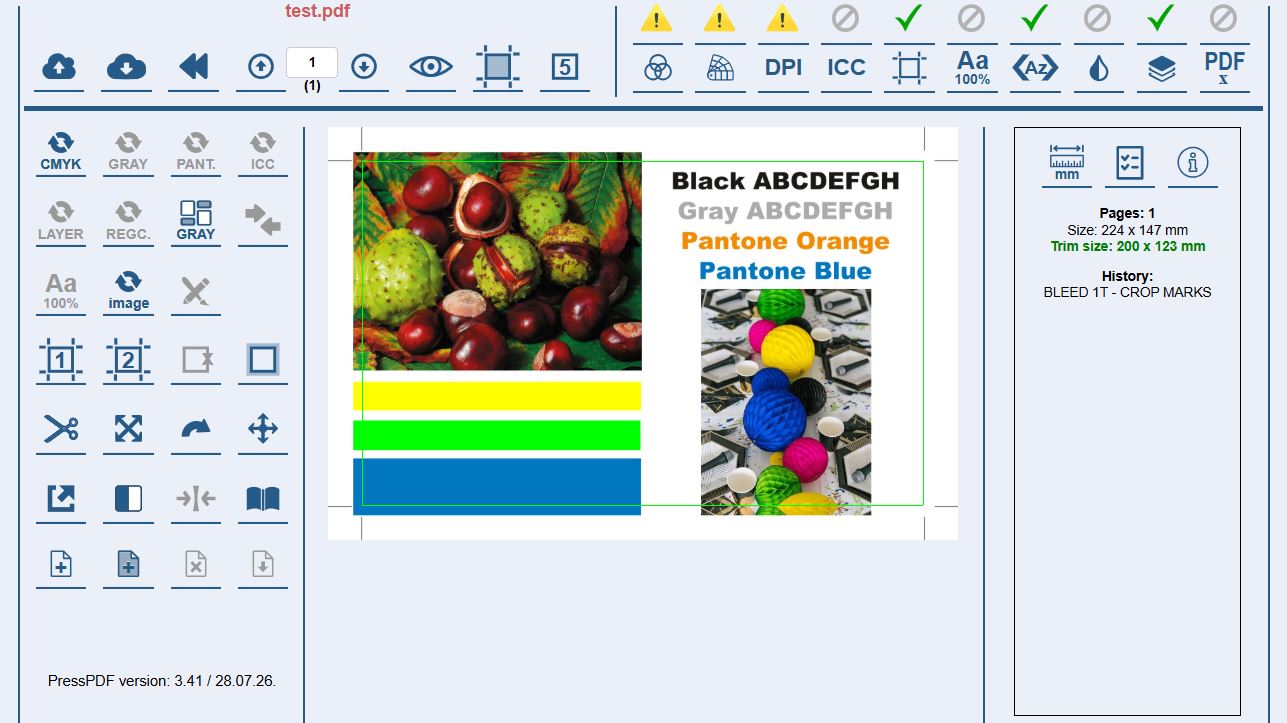
The PressPDF workspace: live preview, prepress checks and history. Try every tool with your own file before you subscribe – you see the finished result, only the download needs a subscription. Resizing is included in every subscription, together with all other PressPDF modules.
9 € / 1 month · 24 € / 3 months · 90 € / 1 year
One-time payment – the subscription does not renew automatically.
Frequently asked questions
What is the difference between resizing by trim size and by page size?
The trim size is the final size of the printed product after cutting; the page size includes the bleed. When you resize by trim size, you enter the final size you need, for example 250 × 150 mm, and the bleed is scaled together with the artwork. When you resize by page size, the whole page including the bleed becomes the size you enter.
Does resizing change my fonts, colours or images?
No. PressPDF only changes the dimensions. The internal structure of the PDF is left untouched: fonts, colour spaces, Pantone colours, images, vectors and layers stay exactly as they were, so no data is lost or altered.
Can I resize a PDF non-proportionally?
Yes. When you enter the width, the height is calculated proportionally. If you overwrite the height, the PDF is resized to exactly the dimensions you entered. Note that in this case the whole content is distorted (stretched or compressed).
Can I resize a PDF by percentage?
Yes. Switch from mm to % and enter the scale, for example 50% to reduce or 141% to enlarge from A4 to A3.
What happens with multi-page PDFs and pages of different sizes?
Resizing applies to all pages. If the pages have different sizes, every page is converted to the same size, so the result is a uniform document ready for printing.
Can I use inches instead of millimetres?
Yes. The unit can be switched between mm and inch on the main page.
What does PDF resizing cost?
You can try the resizing with your own file and check the result in the preview without a subscription. Downloading the finished PDF requires a subscription: 9 € for 1 month, 24 € for 3 months or 90 € for 1 year. The subscription includes all PressPDF modules. One-time payment – the subscription does not renew automatically.
Which files and sizes can I upload?
PDF, JPG, TIFF and PNG files. The maximum file size is 100 MB without a subscription and 1 GB with a subscription.
Related prepress tools
 Add bleed & crop marks
 Add crop marks & trim size
 Crop PDF
 Check trim size & bleed